Your Apple Mac becomes a Video Surveillance Server NVR in 15 minutes!
Make your Apple Mac a professional Video Surveillance Server, a NVR.
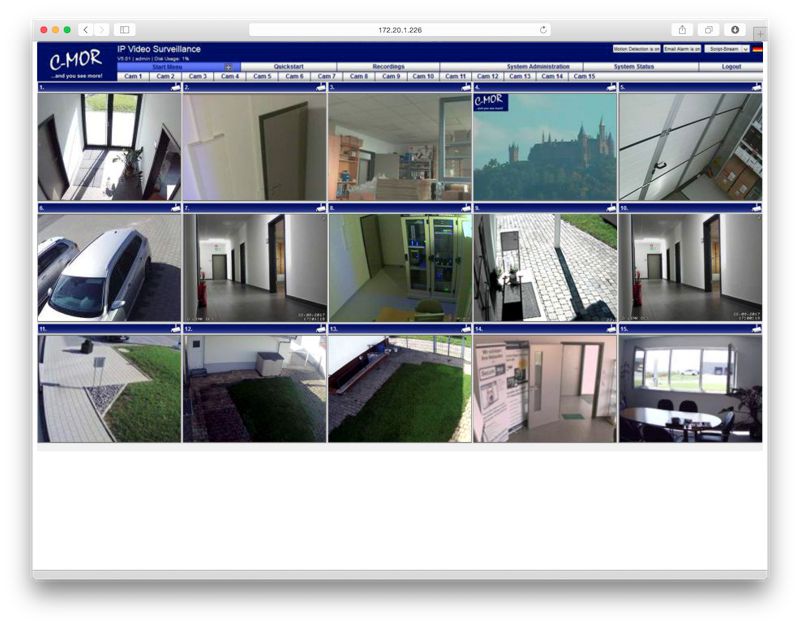
C-MOR is a video surveillance software that turns your Apple Mac (OS X) or PC into a NVR. The web interface is intuitive and very easy to use. C-MOR is very effective and runs on thousands of installations.
This manual describes the installation process of the video surveillance system C-MOR (NVR) on a Apple Mac computer. It takes less than 15 minutes to get it running.
Start over with downloading VirtualBox if you don't have it installed already. Go to www.virtualbox.org and navigate to the download section. Download the Mac version and install it.
Download the C-MOR VirtualBox import file from this location, Free Video Surveillance Software and save it on your Apple Mac computer.
Look for the C-MOR VirtualBox downloaded ZIP file.
Double click the ZIP file to extract it.
Open the folder with the extract file to verify the location of the OVA file which now will be imported into VirtualBox. Alternatively, depending on the downloaded ZIP a OVF file has to be imported.
Open VirtualBox now and open the "File" menu on the top right corner. Select "Import Appliance".
The dialog box for choosing an import file opens.
Select the just extracted OVA file (alternatively OVF) from the ZIP archive and click open.
Make sure you have selected the correct OVA file and click "Continue".
In the next screen the settings for the virtual appliance is displayed. Check the mark "Reinitialize the Mac Address of all network cards" at the bottom of this window.
Agree to the Software License Agreement. A disclaimer will show up later.
Watch how the Virtual Appliance is imported into Virtual Box now.
Now you have a new virtual machine in VirtualBox on the left menu. Select it and click on "Settings". Navigate to the "Network" settings. Now select the network adapter you use on your Mac. Use either WLAN or Ethernet Adapter depending on how your Mac is connected to the network.
Start it now by selecting it and clicking on "Start" in the top menu:
C-MOR shows the start screen and reboots after 3 seconds automatically.
On the first start C-MOR collects all settings and restarts once again automatically. After the reboot it shows the following screen. This indicates the startup has finished
Set the IP address of C-MOR now. The default password is "admin". Use a free address in your network. In the example the new address is "192.168.5.66". Mostly the network mask "255.255.255.0" is correct. Set the gateway (your Internet Router) and the DNS Servers. Very often the DNS Server is also your Internet Router. That means this address is the same. Alternatively use the DNS Servers you have from your Internet Service Provider. Also, set up the 2nd DNS Server which can be an address from your ISP.
Once the IP Address has been set C-MOR is available over network. Enter the just set address into the web browser, http://192.168.5.66.
The login appears. Enter "admin" as username and also "admin" as password.
Next you have to accept the disclaimer to use C-MOR.
Now the start screen shows up.
C-MOR is ready for operation now. Click on the menu "System Administration", scroll down to the language settings and select "GERMAN", if you prefer the language German for the web interface.
Now you can click on "Cam1" and to "Settings" to configure your IP camera recording.
Important: If you like to change the interface from WLAN to Ethernet you first shut down the virtual C-MOR. Change the settings in VirtualBox Network Adapter settings and then select "NetworkReset" when C-MOR starts again after the settings.
Please download and read the C-MOR Video Surveillance manual from the Video Surveillance download page to learn how to record an IP camera. Also read the IP camera setup how to for a quick reference on the IP camera installation!